Configuring a Watch Folder
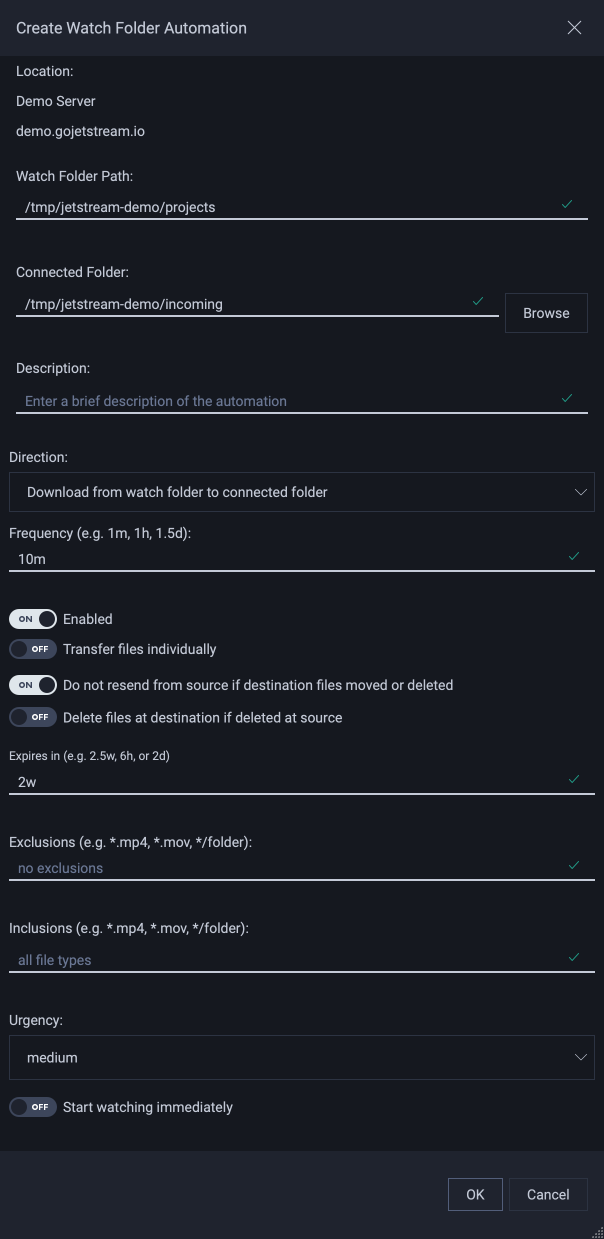
- Location
The name and address of the Location that holds the watch folder.
- Watch Folder Path
The path of the watch folder being created. This should not be changed.
- Connected Folder
The path of the local connected folder
- Description
Enter a description so that you can easily refer back to this watch folder. This is useful when lookinga at the list of watch folder you’ve previously created.
- Direction
Indicates the direction of automation .. note:: A connected folder can either upload to or download from a watch folder.
- Frequency
Set how often the watch folder transfers. Enter a number followed by a unit: minutes (m), hours (h), days (d), or weeks (w). For example, to set the watch folder to transfer every three days, enter 3d.
- Enabled
User can enable or disable the watch folder.
- Transfer files individually
Transfer each file one by one, instead of transferring multiple files as a single batch.
- Do not resend from source if destination files moved or deleted
Files that are moved or deleted from your destination folder will not be resent from the source.
- Delete files at destination if deleted at source
Files that are deleted from the source are also deleted from the destination, unless the destination has a newer version of the file.
- Expires in
Set the length of time for which the watch folder is valid by entering an expiry duration. This can be in minutes (m), hours (h), days (d), or weeks (w). For example, to set the watch folder expiry to one month, enter 4w. This field can be left blank, in which case the watch folder does not expire. .. note:: If a watch folder is being configured as part of a shared link, the shared link expiration date will supersede the watch folder expiration date.
- Exclusions
Specific file types can be ignored by the watch folder, while including all other types. For example, To ignore all .mp4 files, enter *.mp4. To exclude a specific folder, use the format */folder.
Examples
*.mp4 → Excludes all .mp4 files
*.mov → Excludes all .mov files
*/temp → Excludes any folder named temp
*/cache → Excludes any folder named cache
*/temp* → Excludes all contents within any temp folder
*/temp, */temp/project* → Excludes folders starting with project under temp
- Inclusions
Specific file types can be included by the watch folder, while excluding all other types. For example: To include only .mov files, enter *.mov. To include a specific folder, use the format */folder.
Examples:
*.mov → Includes all .mov files
*.mp4 → Includes all .mp4 files
*/media → Includes any folder named media but not the contents inside that folder
*/projects → Includes any folder named projects but not the contents inside that folder
*/media/* → Includes all contents within any media folder
*/media, */media/projects → Includes folders with name projects under folder named media
*/media, */media/projects* → Includes all content under folder projects under folder named media
- Urgency
The urgency this folder’s transfers are created with: Critical, High, Medium, Low or Idle. More urgent transfers are sent ahead of less urgent ones, and transfers of equal urgency are sent in the order they were requested. The default is Medium.
- Start Watching Immediately
Enable the watch folder to start after saving the configuration (independent of the set frequency).