Application Settings
Opening Application Settings
- To open the application settings, click the gear icon near the top-right corner of the application. The gear icon is between the theme button and the ellipsis button. On Windows, you can also select from the menu bar. On macOS, the Settings item is in the application menu:

The Settings Editor will appear.
Settings Editor
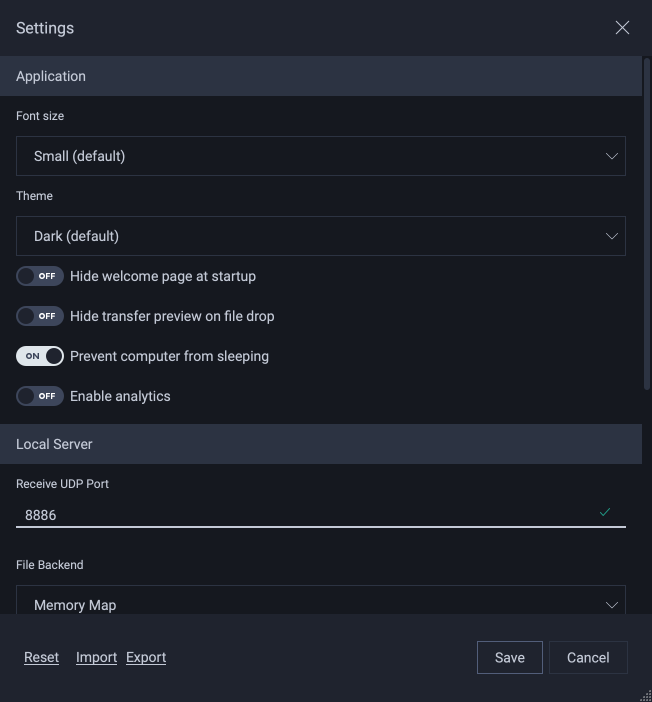
Use the Reset link to discard unsaved changes. Use Import and Export to load the settings from a file or save them to a file.
Application
Font size
Select the application font size. A restart of the application will be required if the size is changed from what is currently selected.
Theme
Select Dark (default) or Light. The new theme applies as soon as you save. No restart is required.
Hide welcome page at startup
On startup, immediately show the Send & Receive page instead of showing the Welcome Page.
Hide transfer preview on file drop
This option affects the behavior of the Send & Receive file browsers. When enabled, dropping paths onto a file browser begins a transfer without first showing the Transfer Preview window. When disabled, the Transfer Preview window is displayed. This option can also be changed with Hide transfer preview (do not show this window) in the Transfer Preview window.
Prevent computer from sleeping
Prevent the computer from going into sleep mode due to user inactivity while the application is running.
Enable analytics
This option affects whether the JetStream application will periodically send usage statistics to Jet Digital Inc. to assist in the improvemements of the product. Please consult the end-user license agreement (EULA) for restrictions on what can be sent.
Local Server
Receive UDP Port
Specify the UDP port that will be used by the Local Location’s server. The default is 0, which indicates the application will choose an available port each time it launches. This is sufficient in most cases, but may not work where transfers are received through a specific port through a router and/or firewall.
Tip
You may also need to configure your network router or firewall to forward UDP packets on this port. Check with your network administrator.
If you specify a specfic Receive UDP Port, you cannot run multiple instances of the JetStream application, under the same user session, at the same time, as their ports will conflict.
Note
After you change this value, it will be necessary to restart the JetStream application for the new setting to take effect.
File Backend
Select the file driver of the Local server: Memory Map (the default) or Raw. Memory Map can be faster, but some hardware works better with Raw. A change takes effect after an application restart.
Transport
Select how this computer sends files: UDP (the default) or TCP. Use TCP on networks that block or throttle UDP. The setting applies to every transfer this computer starts, from its next connection. Transfers that are already running are not interrupted.
Troubleshooting
Save server logs
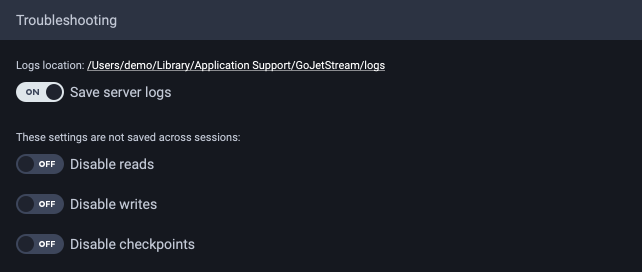
Write a server log for each session. Click on the Logs location link to view previously written logs.
Note
Changing Save server logs requires an application restart to take effect.
Disable reads
Suppress file reads on the sender. This can be used to isolate file system bottlenecks.
Disable writes
Suppress file writes on the receiver. This can be used to test transfers without modifying the target file system or to isolate bottlenecks.
Disable checkpoints
Suppress checkpoints on the sender. Checkpoints let a partly completed transfer recover after a server disconnection. On reliable connections, disabling checkpoints can make transfers faster because the sender does less file I/O. Checkpoints are always disabled when the sender or the receiver is the Local server.
Note
Disable reads, Disable writes and Disable checkpoints apply only to new transfers, and they are not saved across sessions.