Diagnostic Tools
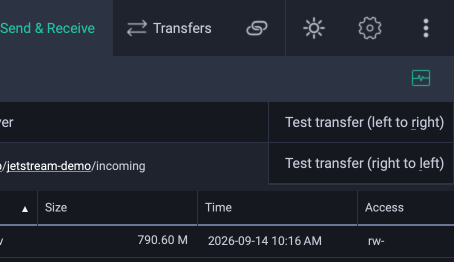
The Connection Test diagnoses connection issues with a Location. The Test Transfer described below is the other diagnostic tool, and it is accessed from the Diagnosis menu in the Send & Receive panel.
Test Transfer
A test transfer will create a temporary file of a specified size and start a transfer with the given parameters. The source and destination test files are deleted once the transfer completes.
To start a test transfer, select either Test transfer (left to right) or Test transfer (right to left) to bring up the Test Transfer Dialog.
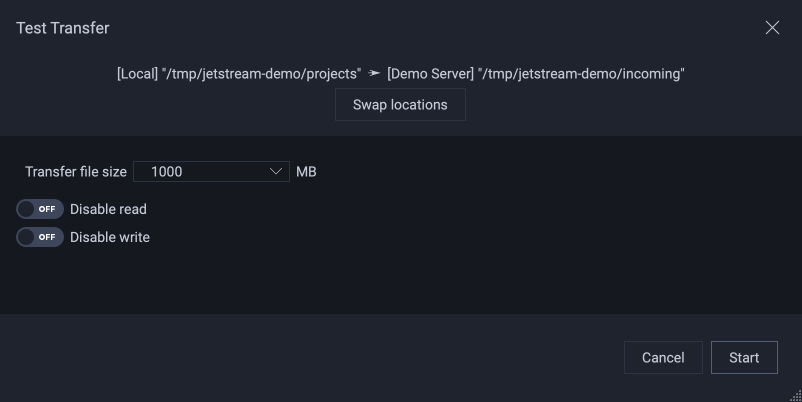
Test transfers are done between the two currently selected Locations, and may be done from the left-hand Location to right-hand Location, or vice versa. The direction can be swapped in the Test Transfer Dialog. Temporary files used for the transfer are created in the current directory shown in left-hand and right-hand file browsers. To change the current directory, cancel the dialog, browse to the folder of interest and double-click on the folder to make it current.
In addition to setting the size of the test transfer, several other options can be used for profiling:
Disable read – No file IO will occur on the sending side of the transfer; the resulting files will contain all zeroes.
Disable write – No file IO will occur on the receiver side of the transfer, including creating files and writing data.
These settings can be used to diagnose transfer bottlenecks. For instance, network throughput can be tested by disabling both reads and writes.