Transfer Graphs
Transfer Graphs is part of Transfer Details.
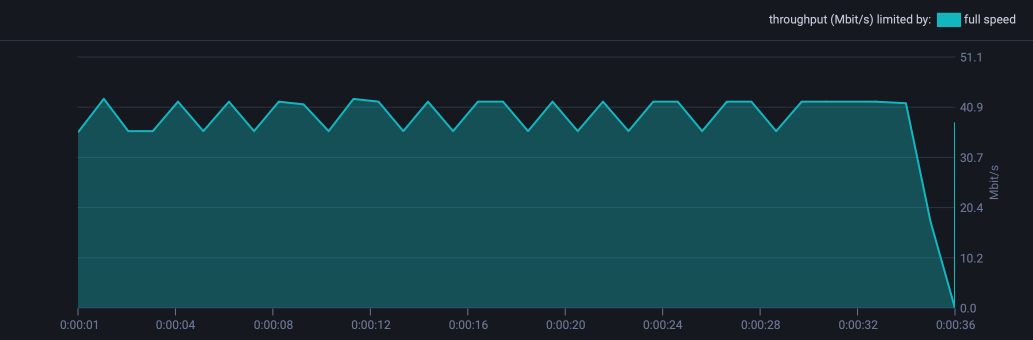
The area contains a graph that shows real-time statistics for an ongoing transfer.
The graph draws the throughput of the transfer as a line, in megabits per second. The colour of the line shows what limited the transfer at each moment. The legend reads throughput (Mbit/s) limited by:, followed by one colour for each limit that the transfer met. For example:
full speed: nothing that JetStream controls held the transfer back.
speed limit: a rate limit held the transfer back.
urgency cap: a more urgent transfer held the transfer back.
reading files: the sender’s disk held the transfer back.
receiver disk: the receiver’s disk held the transfer back.
Two more lines show only when they have data:
packet loss (%) shows when packet loss is measured.
rate cap shows when a rate limit is in force. The legend names who set it.
Labelled markers show when the transfer was paused, queued, yielding, or had no connection.
Tip
To isolate performance bottlenecks use the Troubleshooting options in the Application Settings.
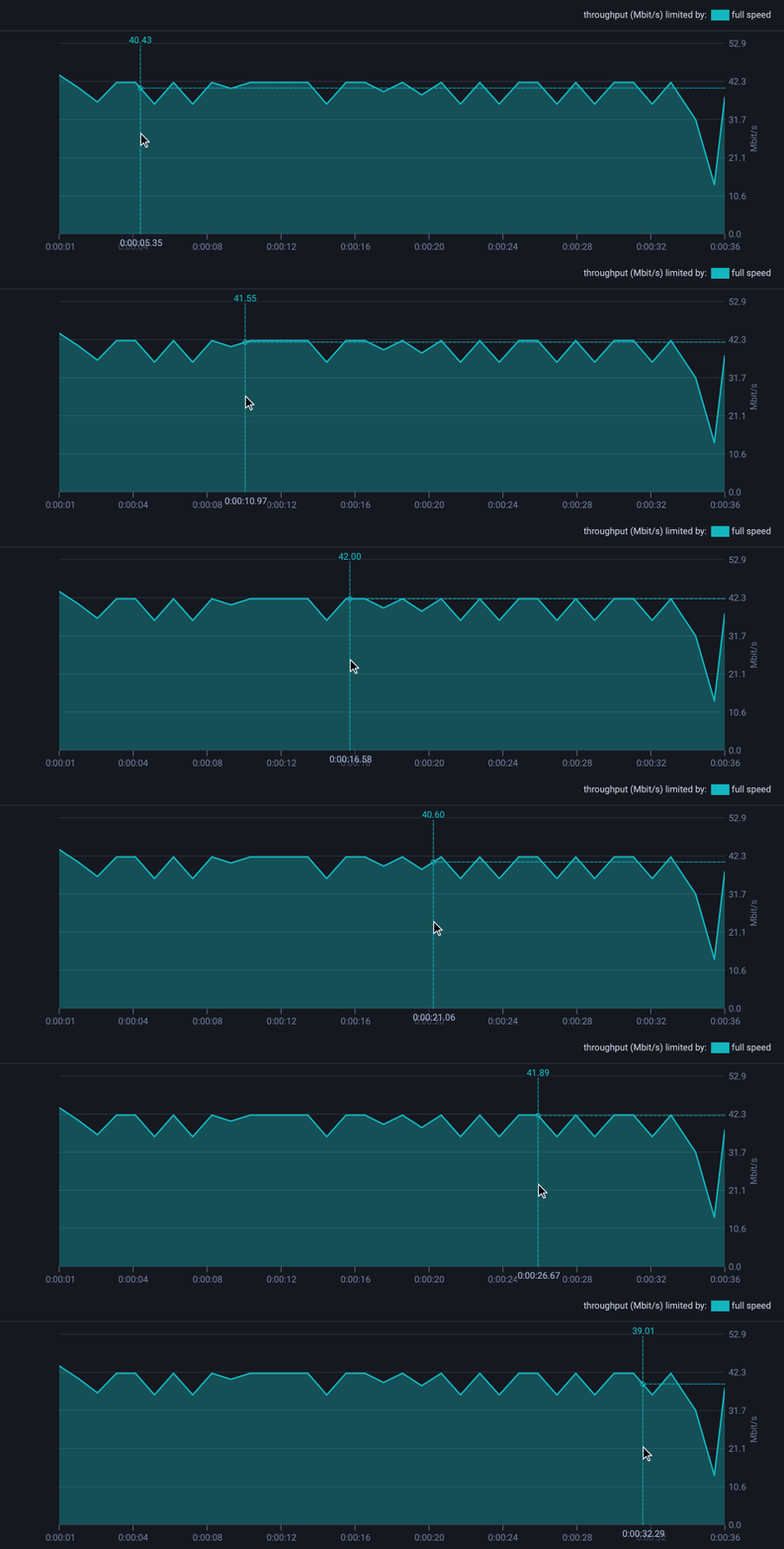
Hover
Hovering over the graph highlights the values recorded at that point during the transfer.
Clipboard
The Transfer Graph supports the clipboard copy operation. To copy the numerical statistics as shown in the transfer graph:
Click the mouse anywhere within the Transfer Graph.
or press Control,⌘ + C.
The numerical statistics from the graph will be copied into the clipboard.
The text below shows a sample for how the statistics are represented when copied.
time, throughput
0.000000, 0.000000
1.009669, 0.000000
2.019023, 97003336.000000
3.026019, 192745440.000000
4.031374, 192843776.000000
5.032853, 192294912.000000