Sharing Files
Instead of immediately starting a transfer, the feature gives you a link that you can give to other people so they can download a set of files themselves at their leisure even if they do not have user accounts on the hosting JetStream server.
Note
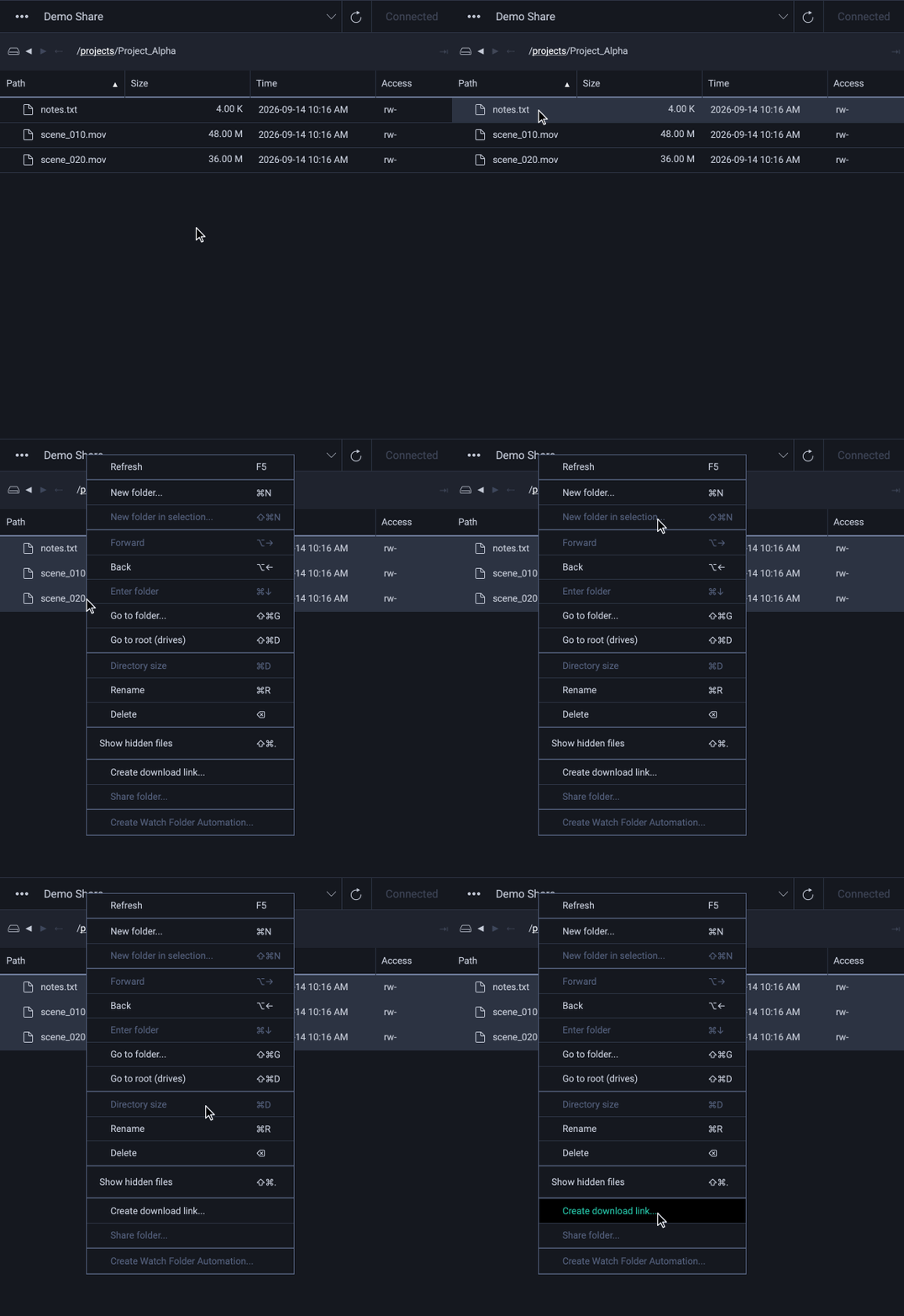
The shareable link feature must be enabled on the connected location’s server. If the server does not allow links, the menu option will be disabled.
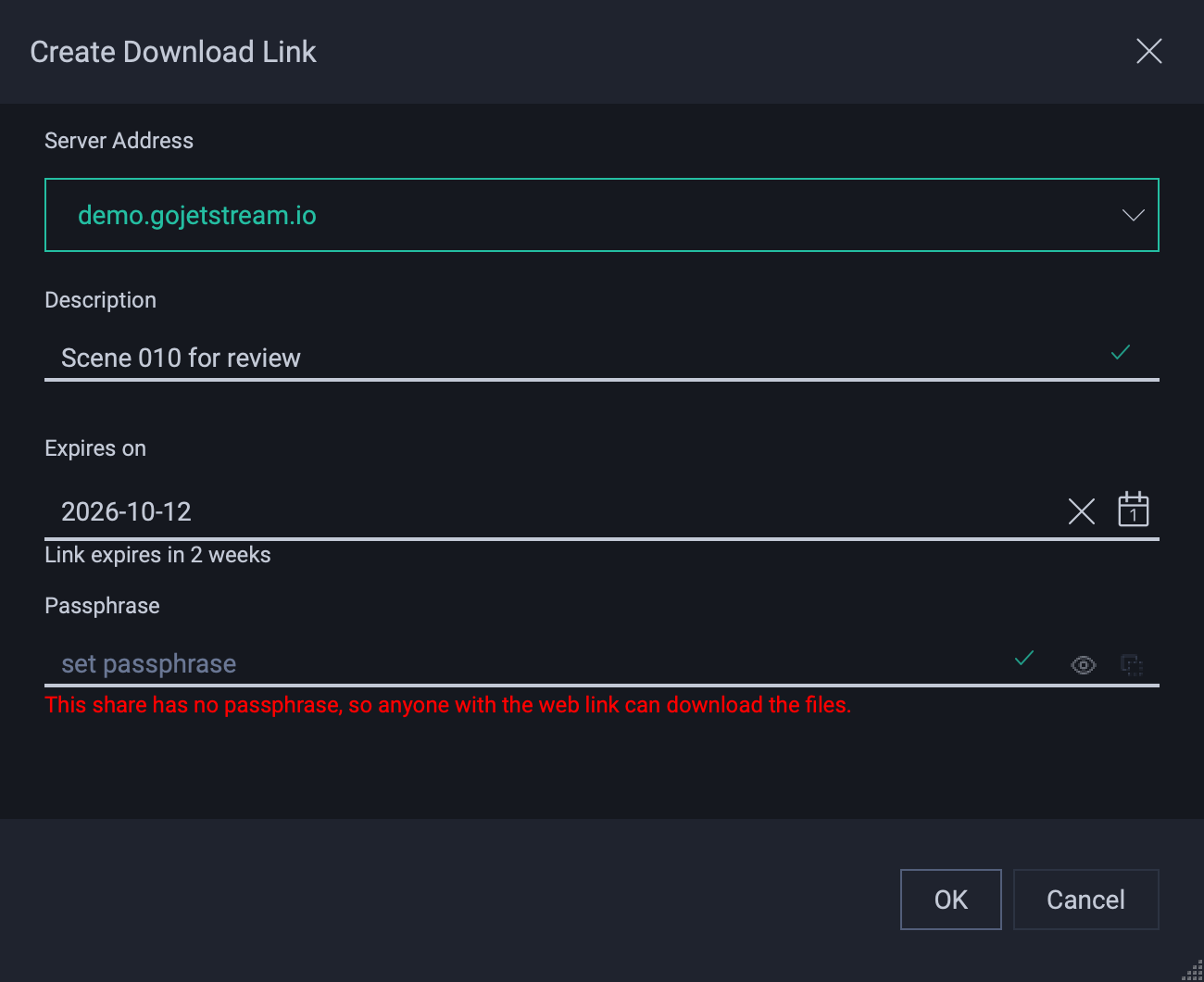
The Create Download Link dialog lets you configure various options for this link.
Configuring the Link
Server Address
Choose the address of the server to use in the link. The list holds the Location’s address. It also holds the server’s preferred and external addresses when the server reports them. When the Location’s address is localhost or 127.0.0.1, JetStream chooses the external address, because other machines cannot use a local address. A note shows while the external address is selected. The next time, JetStream selects the address that you used last.
Description
Enter a description so that you can easily refer back to this link. This is useful when looking at the list of shareable links you’ve previously created.
Expires on
Choose the last day on which the link works. Click the field or the calendar button to open a calendar, then click a date. The link stops working at 11:59 pm on that date. A note below the field shows how long the link lasts.
The first default is two weeks from today. After that, the dialog uses the same number of days as the last link that you created.
To make a link that does not expire, click the clear button beside the date.
Passphrase
For extra security, give the link a passphrase which the downloader must enter when they try to obtain the shared files. Take note of the passphrase because it cannot be recovered later. The passphrase will need to be communicated to any user who wants to use the link.
The passphrase is hidden as you type. Click the eye button in the field to show it. Click the copy button in the field to copy it to the clipboard.
If the server creates web links and you leave the passphrase empty, a warning shows below the field. Anyone with the web link can then download the files.
Web Link
When the server can serve the files in a web browser, JetStream also creates a web link. A recipient opens the web link in a web browser, with no JetStream app installed. There is no option to turn the web link off. When the share holds files in cloud storage, the dialog does not offer the web link.
Sharing the Link
Once you have configured the link, JetStream opens the Download Link Information dialog.
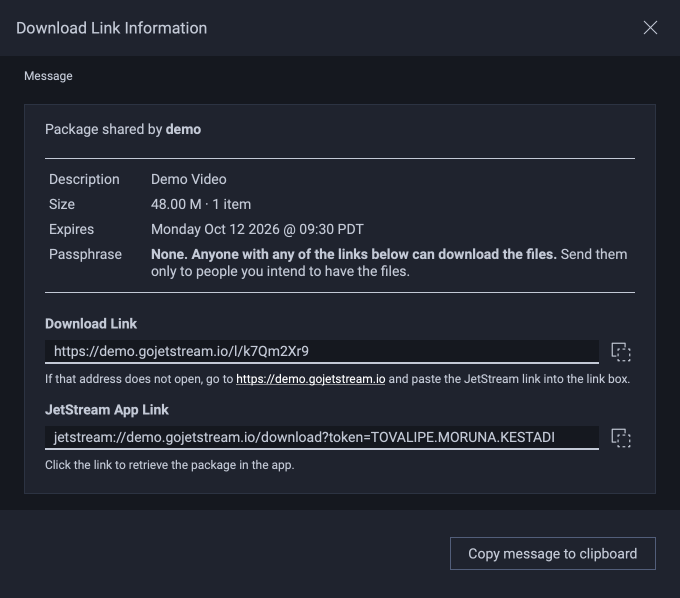
The dialog shows a message with a table of details, for example the description, the size, the expiry date and whether a passphrase is required. Below the message are the links:
Download Link is the web link. A recipient opens it in a web browser. It shows only when the server creates web links for this share.
JetStream App Link is the link that opens the files in the JetStream app.
Each link has its own copy button. The button copies only that link to the clipboard.
Click Copy message to clipboard to copy the entire message to the clipboard. You can then paste it into an email message to share with your intended recipients.
If the link uses a passphrase, it should be sent separately from the link itself to increase security.