Transfer Manager
When a transfer is started from Send & Receive or by Download Shared Files, it will be added to the Transfer Manager. The manager tracks the status of each transfer in real time.
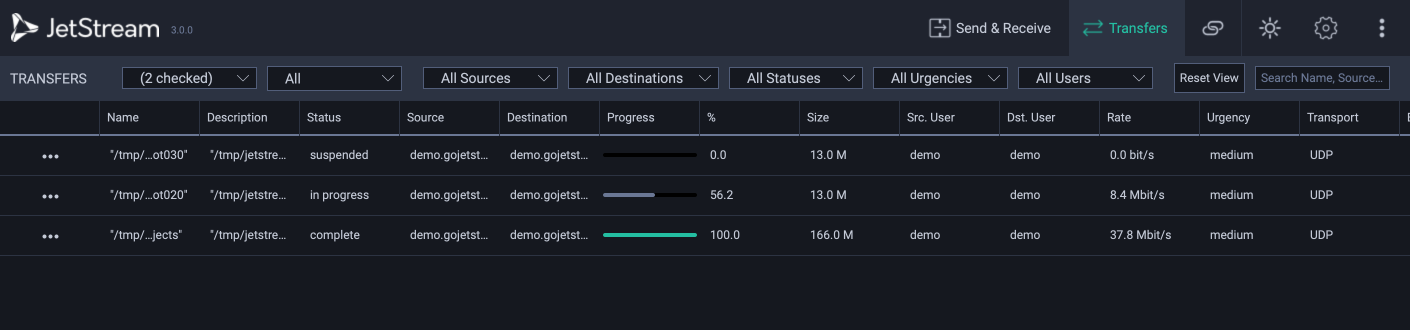
The Transfer Monitor provides access to review and manage ongoing, finished and failed transfers.
Transfers are shown in a sortable list that displays various columns of status information about each transfer. The list includes active transfers, as well as transfers that have finished or have failed due to an error.
Tip
You can quickly switch between the Send & Receive screen and the Transfers Monitor via the Control,⌘ + ← and Control,⌘ + → keyboard shortcuts.
Selecting Items
The Transfer Manager supports extended selection. There are several ways to select multiple items.
Click and hold the left mouse button, and drag a range of items.
Hold Control and click individual items.
Click one item, hold Shift, and then click on an item above or below to select a range of items.
Context Menu
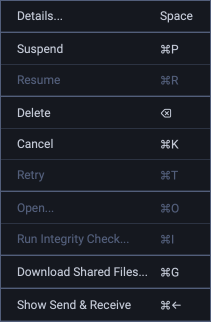
Right clicking on a transfer will show the pop-up context menu. Some options will be unavailable depending on the current selection, the version of the server to which you are connected, and its configuration.
Menu |
Shortcut |
Action |
|---|---|---|
|
Space |
|
Control,⌘ + P |
||
Control,⌘ + R |
||
Del |
||
Control,⌘ + K |
||
Control,⌘ + T |
Retry the transfer |
|
Control,⌘ + O |
||
Control,⌘ + I |
||
Control,⌘ + G |
||
Control,⌘ + ← |
Transfer Details
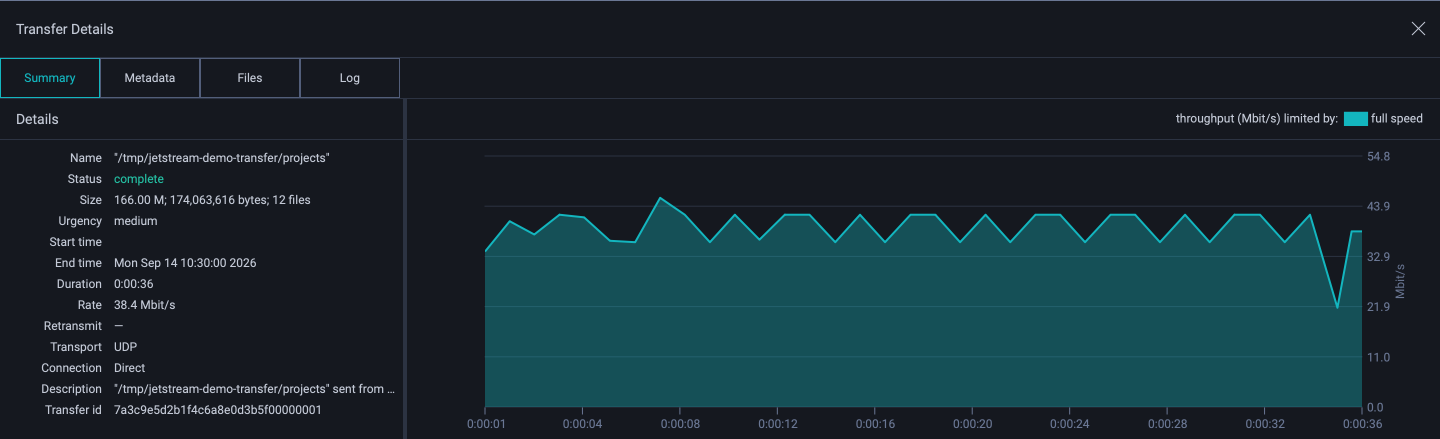
Double-clicking on a transfer will open up Transfer Details, which shows you graphs and statistics for your transfer.
Filters
- Servers
Choose which servers’ transfers are shown. The list names each of your Locations.
- Direction
Show Outgoing transfers, Incoming transfers, or All. The default is All.
- Sources
Transfers can be filtered by their source.
- Destinations
Transfers can be filtered by their destination Location.
- Statuses
Transfers can be filtered based on their status, for example pending, sending, suspended, canceled or complete.
- Urgencies
Transfers can be filtered based on their urgency (Critical, High, Medium, Low and Idle).
- Users
Transfers can be filtered by the source user.
- Reset View
Reset the Transfer Manager view to default settings.
- Search
Transfers can be searched by the transfer Name, the Source, or the Destination.
Columns
The list has the following columns. The All view is the default, and it does not show the Max Rate and Integrity columns. Choose Outgoing in the Direction filter to see them.
- Name
The Name column shows the name of the transfer.
- Description
The Description column shows the description of the transfer.
- Status
The Status column shows a summary status of the transfer.
Tip
If the Status column indicates that the transfer has failed due to an error, a description of the error may be found in the Transfer Details. To open the Transfer Details for the failed transfer, double-click on its row in the Transfer Monitor, or select a row, and press Space.
Tip
If the Status column indicates that the transfer is not responding, this means that JetStream was unable to detect any network activity for over a minute. In some cases, a transfer may recover from this state, but it is more likely that the transfer will need to be canceled, deleted, and restarted.
- Source
The Source column displays the name of the sending Location (and the host name of its server).
- Destination
The Destination column displays the name of the receiving Location (and the host name of its server).
- Progress
The Progress column shows whether the transfer is being actively sent, or if it has failed with an error.
- %
The % column shows the progress of the transfer as a percentage.
- Size
The Size column shows the total size of the transfer.
- Source User
The Src. User column shows the user who started the transfer.
- Destination User
The Dst User column shows the user who will recieve the transfer.
- Rate
The Rate column shows the current effective rate at which the transfer is being received. The configuration of the transfer, as well as network conditions, will affect the effective transfer rate.
If this rate drops to 0 (zero) while the transfer indicates it is “Sending”, then there has been an interruption between the Origin and Destination Locations. The JetStream application will continue to adjust the sending characteristics from the Origin Location until a connection is reestablished.
- Max Rate
The Max Rate column shows the maximum send rate specified by Send Rate in the ᐧᐧᐧ Menu.
- Urgency
The Urgency column shows how urgent the transfer is: Critical, High, Medium, Low or Idle. By default, transfers are Medium. In the Outgoing view, the column is hidden by default.
See also
- Transport
The Transport column shows the transport that the transfer uses: UDP or TCP.
- Elapsed
The Elapsed column shows the amount of time the transfer has been running. This time includes any time the transfer is suspended.
- ETA
The ETA column is an attempt to estimate the amount of time required until the transfer will be finished. Note that network conditions can vary in ways that this estimate will not be able to predict.
- Start
The Start column shows the time at which the transfer was started.
- Integrity
The Integrity column shows whether the a Integrity Check has been performed on the transfer.