Location Editor
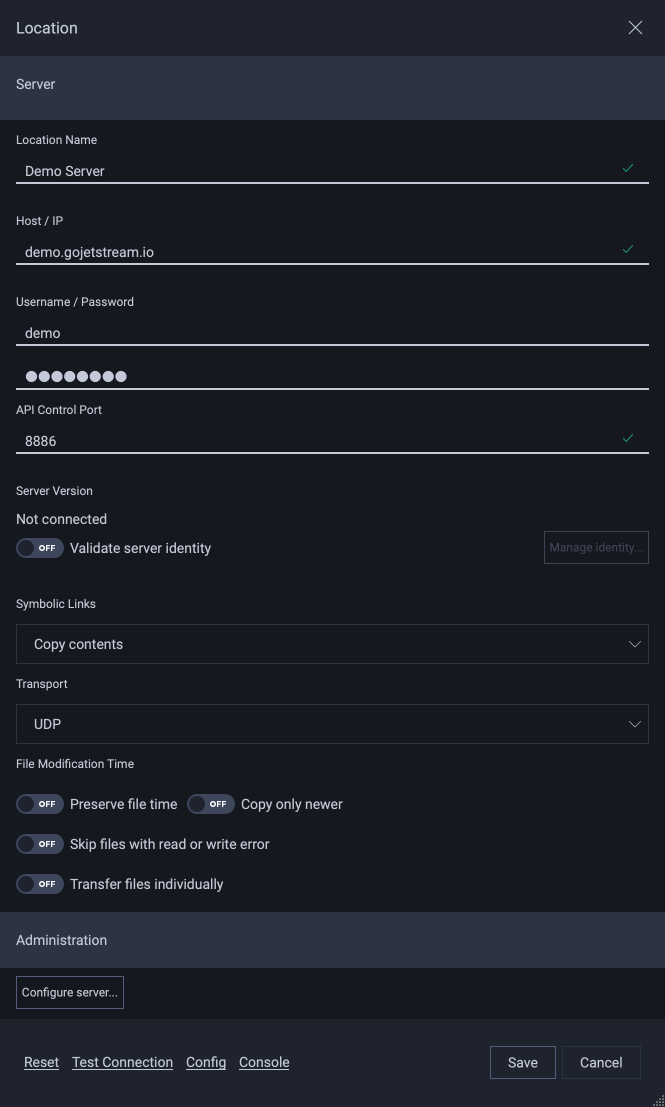
The Location Editor is displayed when creating a new Location and when editing an existing Location.
Configuring A Location
Location Name
Specify a name for your Location. The name can be anything you choose, save for a few restrictions:
You may not use the name “Local”.
The name may not be empty.
The name may not start with whitespace.
The name may not end with whitespace.
Host / IP
Specify the host name or IP address for the Location’s JetStream server.
Note
JetStream currently only supports IPv4.
You may create more than one Location that connects to the same JetStream server. There are a few reasons why you may want to do this:
Each Location may require different authentication. The authentication will govern which files and folders are accessible from the client.
Username / Password
If the Location requires a login, specify the username and password here.
API Control Port
Specify the API control port for the JetStream server. This is the port on which the server listens for connections from the JetStream client.
Note
You’ll need to obtain the API control port from the server administrator. By default, JetStream servers use port 8886.
Server Version
Shows the version and build of the Location’s JetStream server. You cannot edit it. It reads “Not connected” until the client has connected to the server.
Validate Server Identity
Each JetStream server has a security certificate. When Validate Server Identity is turned on, connections to the Location will only succeed if the server’s certificate is trusted. The trusted certificate for this Location can be set by pressing the Manage identity… button. This bring up the Managing Location Identity dialog which can be used to either download or manually set a trusted certificate for this Location.
Note
When creating a new Location, the server’s identity is automatically downloaded in the background and trusted.
Note
A server running on the same machine as the Client application, such as when the Host is localhost or 127.0.0.1, does not require a trusted certificate, so Validate Server Identity will default to off.
Symbolic Links
The Symbolic Links dropdown provides a default transfer-level option for symbolic link handling. Available options are:
Copy contents – follow the symbolic link, and copy the actual file contents
Ignore – Ignore (do not copy) any symbolic links
Transport
The Transport dropdown selects how transfers between this computer and the Location are carried: UDP or TCP. UDP is the default. Use TCP on networks that block or throttle UDP.
File Modification Time
These toggles set the default transfer options for the Location:
Preserve file time – set the destination file’s modification time to match the source file
Copy only newer – copy only files that are newer than the destination files
Skip files with read or write error – skip files that have read or write errors instead of failing the whole transfer
Transfer files individually – transfer each file one by one, instead of as a single batch
Administration
If you have administrator privileges on the JetStream server, you may configure the server by clicking the Configure server… button. This bring up the Configuring A Server dialog.
Testing Your Connection
Once you have configured your location, click on Test Connection to check if your connection setup works. This will bring up the Connection Test dialog, which runs a variety of tests to determine if the server you have configured is accessible and can be used to transfer files.
Connection Console
JetStream provides a command line console for sending JetStream API commands to the server at any given location. This can be useful in certain troubleshooting scenarios. To bring up the connection console, click on Console.