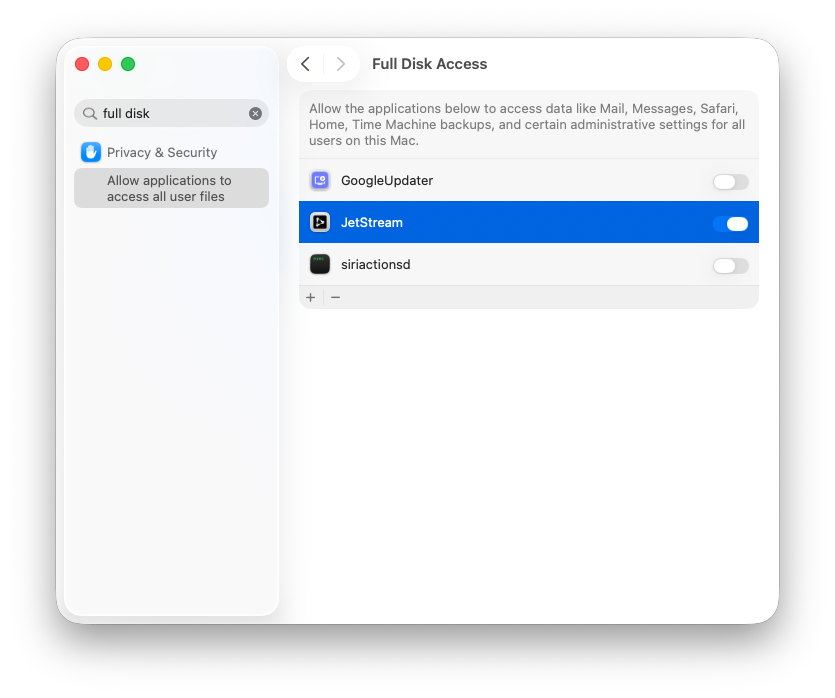
Full Disk Access on macOS 10.15+
By default, applications running on macOS 10.15 (Catalina) and above do not have access to certain folders, such as a user’s Desktop and Downloads folders, as well as network shares. Attempting to access these folders pops up a dialog to confirm whether access should be granted.
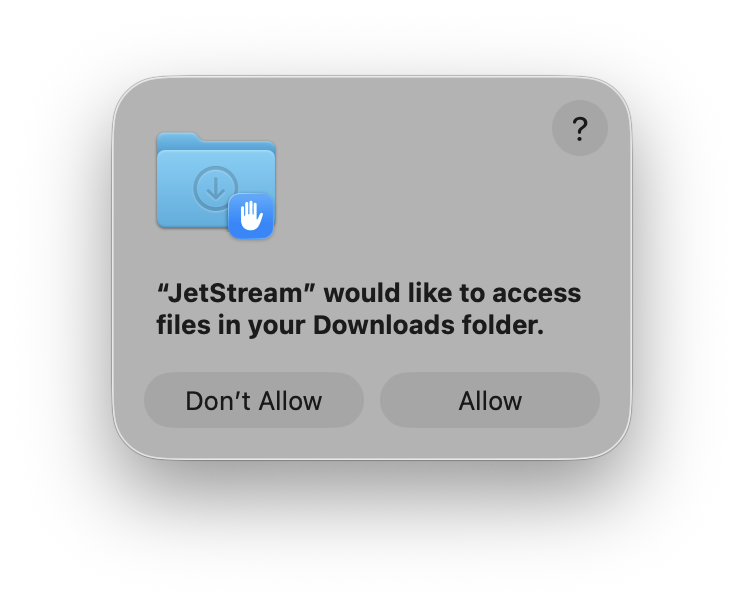
When connecting to the JetStream server from a remote machine, there is no way to see this dialog and either allow or disallow access. The result is that the request to access the folder will hang until the dialog is dismissed.
Granting Full Disk Access
On macOS 10.15 and above, it is recommended that you grant the JetStream server full disk access.
On macOS 13 and later, navigate to . On macOS 10.15 to 12, navigate to . Then add jetstream. If jetstream is not listed, click the + button and add /usr/local/jetstream/bin/jetstream. Alternately, if you install the Client Application and attempt to navigate to a restricted folder (such as Desktop), then jetstream will be automatically listed.