Configuring a Watch Folder
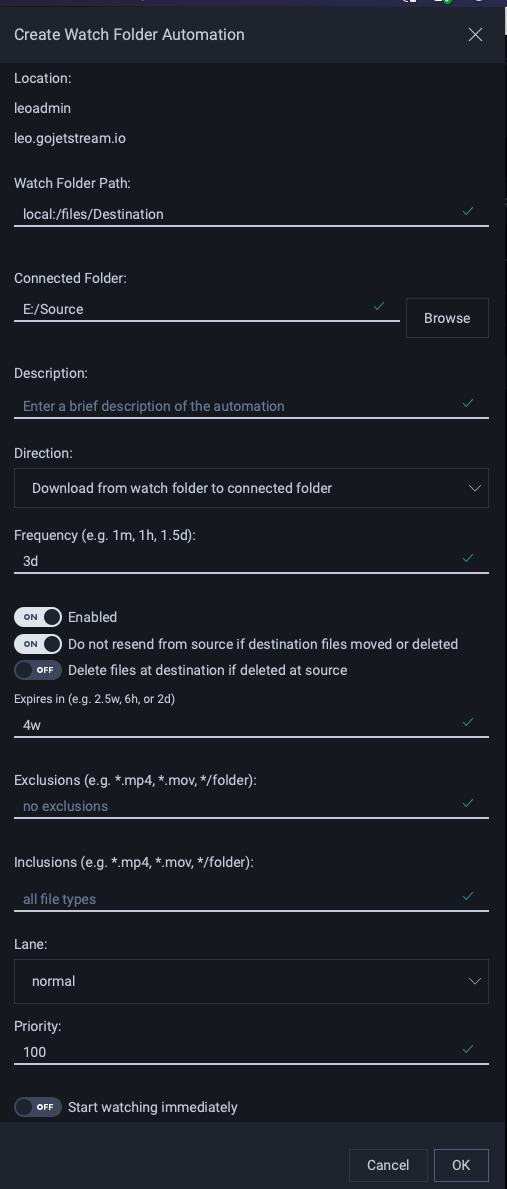
- Watch Folder Path
- The path of the watch folder being created. This should not be changed.
- Connected Folder
- The path of the local connected folder
- Description
- Enter a description so that you can easily refer back to this watch folder. This is useful when lookinga at the list of watch folder you’ve previously created.
- Direction
- Indicates the direction of automation .. note:: A connected folder can either upload to or download from a watch folder.
- Frequency
- Set the frequency of time for which the watch folder will wait to transfer. This can be mintes (m), hours (h), or weeks (w). For example, to set the watch folder to transfer every three days, enter 3d.
- Enabled
- User can enable or disable the watch folder.
- Do not resend from source if destination files moved or deleted
- Files that are moved or deleted from your destination folder will not be resent from the source.
- Delete files at destination if deleted at source
- Files that are deleted from the source will not be deleted from the destination
- Expires in
- Set the length of time for which the watch folder is valid by entering an expiry duration. This can be in minutes (m), hours (h), or weeks (w). For example, to set the watch folder expiry to one month, enter 4w. This field can be left blank, in which case the watch folder does not expire. .. note:: If a watch folder is being configured as part of a shared link, the shared link expiration date will supersede the watch folder expiration date.
- Exclusions
Specific file types can be ignored by the watch folder, while including all other types. For example, To ignore all .mp4 files, enter *.mp4. To exclude a specific folder, use the format */folder.
Examples
- *.mp4 → Excludes all .mp4 files
- *.mov → Excludes all .mov files
- */temp → Excludes any folder named temp
- */cache → Excludes any folder named cache
- */temp* → Excludes all contents within any temp folder
- */temp, */temp/project* → Excludes folders starting with project under temp
- Inclusions
Specific file types can be included by the watch folder, while excluding all other types. For example: To include only .mov files, enter *.mov. To include a specific folder, use the format */folder.
Examples:
- *.mov → Includes all .mov files
- *.mp4 → Includes all .mp4 files
- */media → Includes any folder named media but not the contents inside that folder
- */projects → Includes any folder named projects but not the contents inside that folder
- */media/* → Includes all contents within any media folder
- */media, */media/projects → Includes folders with name projects under folder named media
- */media, */media/projects* → Includes all content under folder projects under folder named media
- Lane
- Priority lanes are named queues of transfers. Transfers within a single lane will be sent one at a time in priority order. If there are active transfers in multiple lanes, then these transfers are sent simultaneously by sharing the bandwidth of the connection.
- Priority
- Priority is number from 0 to 100 used to sort transfers within a priority lane. Lower values are considered higher priority; i.e. priority 1 takes precedence over priority 2. The default is 100. The priority of a transfer may be adjusted at any time while it is active.
- Start Watching Immediately
- Enable the watch folder to start after saving the configuration (independent of the set frequency).